Free Automatic Attendance Register in Excel for Small Companies (Download + Step-by-Step Guide)
Every month-end, in almost every small office, the same scene repeats. Someone opens a notebook, someone else counts days on a calculator, and an employee quietly asks, “Did you mark my half day?” A small mistake in attendance can turn into a big feeling of unfairness. That is why a clear and honest attendance record matters, not only for salary, but for trust between a team and its manager.
This free automatic attendance register in Excel is made for small companies, shops, clinics, schools, workshops and business units that do not want to buy expensive HR software. You mark each day with a simple code from a drop-down list, and the sheet works out present days, absent days, leave, work from home and total payable days for you.
Why every small business needs a proper attendance register
- Fair pay. Salary, deductions and overtime are only fair when they are based on a clear record of days worked.
- Fewer arguments. When attendance is written down every day, nobody has to rely on memory at the end of the month.
- Leave tracking. You can see at a glance who took leave, who worked from home and who was absent.
- Less stress for the manager. No more late nights with a calculator. The totals are ready the moment the last day is marked.
- A record you can show. A neat monthly sheet is easy to save, print and share when someone asks for proof.
What is inside this attendance register template
- Automatic dates and weekdays. Type any date of the month once, and the sheet fills in 28, 29, 30 or 31 days with the day names (Mon, Tue, Wed…). Saturdays and Sundays turn grey.
- Ready for 30 employees. Columns for serial number, employee ID, department and name. You can add more rows (see the FAQ).
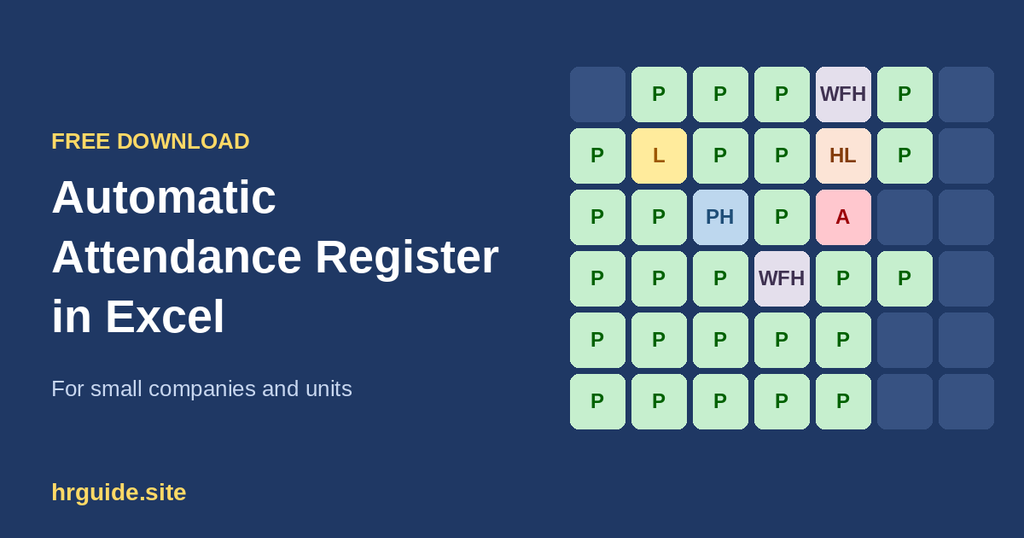
- Drop-down attendance codes. Click a day, choose a code, done. Each code has its own colour so mistakes are easy to spot.
- Automatic monthly totals. Present, Absent, Leave, WFH and Total Payable Days are calculated for every employee.
- Day-wise totals. The bottom rows show how many people were present, absent, on leave or working from home on each date.
- Print-ready. The page is set to A4 landscape so the whole month fits on one sheet of paper.
- How to Use sheet. A second tab explains every code and every step, so a new person can start without training.
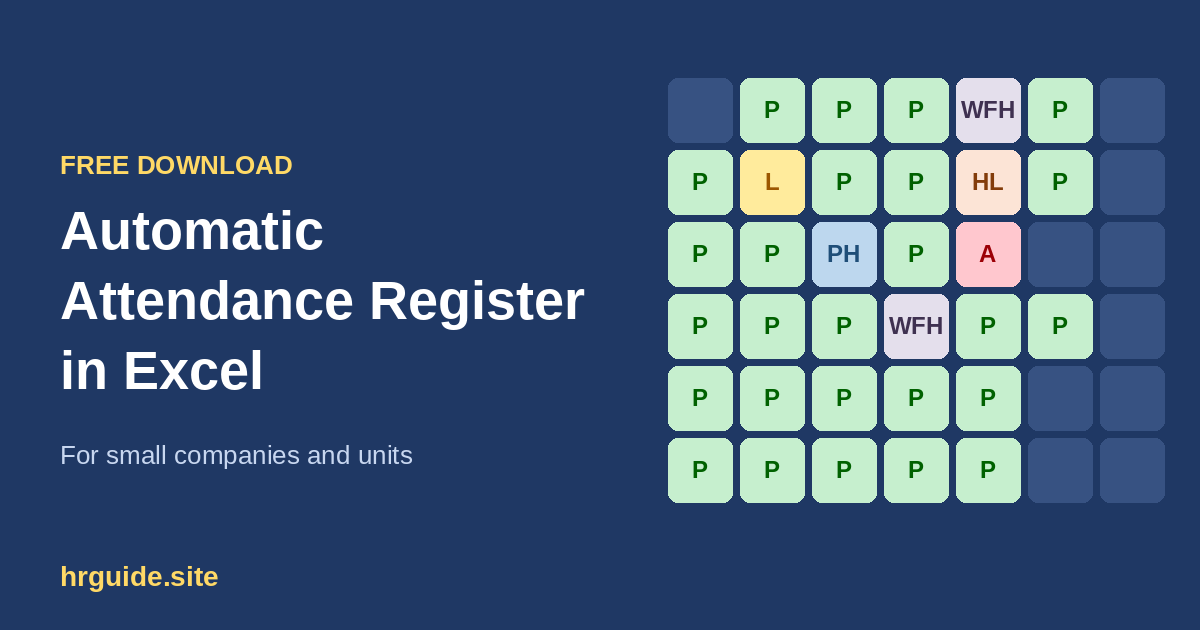
Attendance codes explained (P, A, L, HL, PH, WFH)
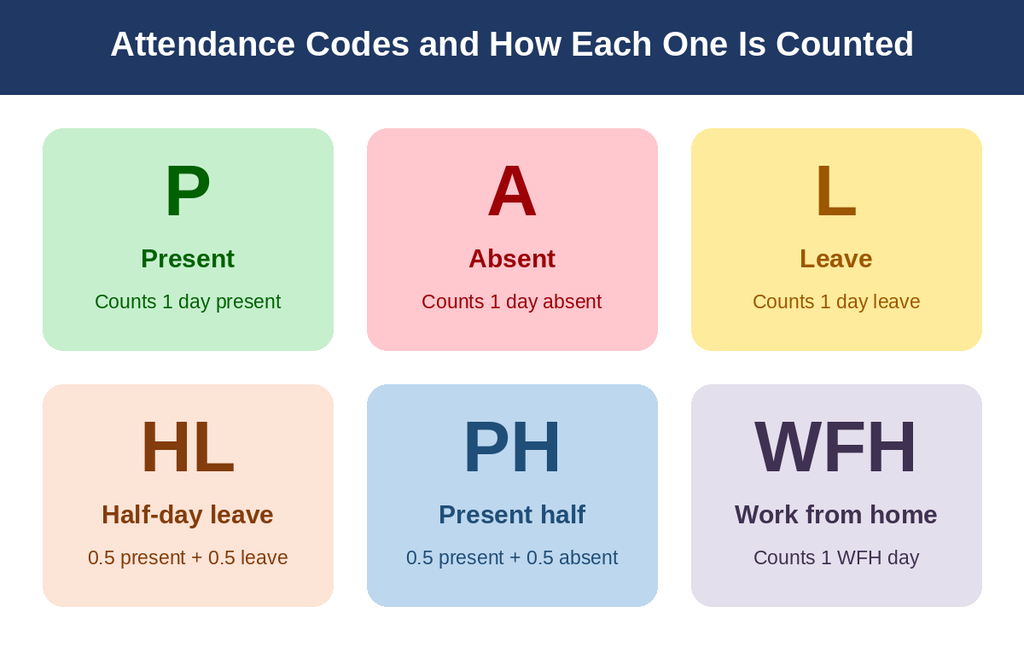
| Code | Meaning | Present | Absent | Leave | WFH |
|---|---|---|---|---|---|
| P | Present (full day) | 1 | 0 | 0 | 0 |
| A | Absent | 0 | 1 | 0 | 0 |
| L | Leave (full day) | 0 | 0 | 1 | 0 |
| HL | Half-day leave | 0.5 | 0 | 0.5 | 0 |
| PH | Present half (the other half is absent) | 0.5 | 0.5 | 0 | 0 |
| WFH | Work from home | 0 | 0 | 0 | 1 |
The two half-day codes are the ones people mix up, so here is the simple difference:
- HL (half-day leave) means the employee took half a day off as leave. The half day worked counts as present and the other half counts as leave.
- PH (present half) means the employee was present for only half the day and the other half was not approved. The worked half counts as present and the other half counts as absent.
How the automatic calculation works
You do not need to understand formulas to use the sheet, but it helps to know what is happening behind the scenes. For each employee the sheet counts the codes in that row:
- Present = number of P + half of (PH + HL)
- Absent = number of A + half of PH
- Leave = number of L + half of HL
- WFH = number of WFH
- Total Payable Days = Present + Leave + WFH
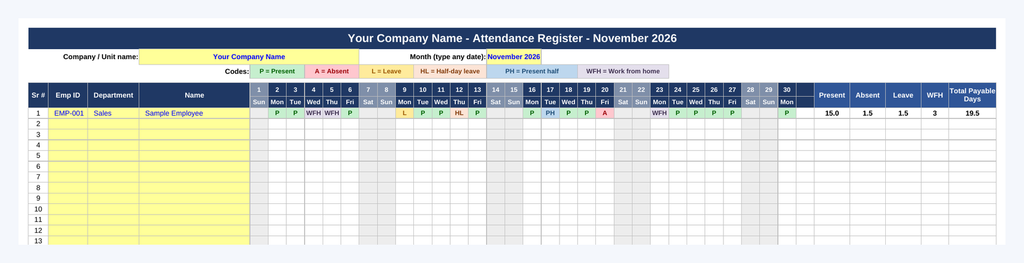
A worked example. The sample row in the template is for November 2026. Weekly-off days are left blank, which leaves 21 working days. The employee has 14 days marked P, 3 days WFH, 1 day L, 1 day HL, 1 day PH and 1 day A.
- Present = 14 + (1 + 1) / 2 = 15
- Absent = 1 + 0.5 = 1.5
- Leave = 1 + 0.5 = 1.5
- WFH = 3
- Total Payable Days = 15 + 1.5 + 3 = 19.5
Quick check: 21 working days minus 1.5 absent days is 19.5, so the numbers agree.
Note: Total Payable Days counts paid leave and work from home as payable. If some of your leave is unpaid, adjust the result to match your own company policy.
Step-by-step: how to use the attendance register
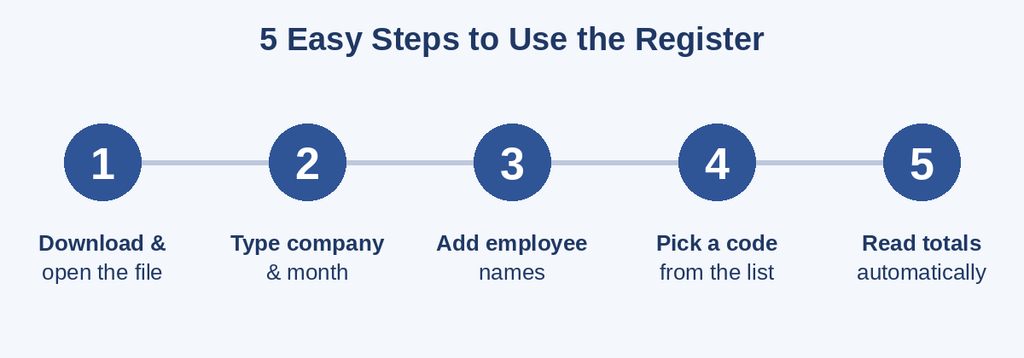
Step 1: Download and open the file. Save the Excel file to your computer and open it. Go to the sheet called Attendance Register.
Step 2: Enter your company name and month. Type your company or unit name in the first yellow cell. In the second yellow cell, type any date of the month you want, for example 01-12-2026. The title, dates and weekdays update on their own.
Step 3: Add your employees. Type the Employee ID, Department and Name in the yellow columns. Delete or overwrite the sample row (Employee ID EMP-001) before you start.
Step 4: Mark attendance every day. Click the cell under a date and choose P, A, L, HL, PH or WFH from the drop-down. The cell changes colour straight away. The sheet will not accept any other text, so typing mistakes cannot spoil the totals.
Step 5: Read the totals. On the right side you will see Present, Absent, Leave, WFH and Total Payable Days for each person. At the bottom you will see the day-wise totals for the whole team.
Step 6: Start the next month. Change the month cell, select the day cells and press Delete. Save each month as a separate file, for example Attendance-December-2026.xlsx, so you always have a clean record.
Tips to keep your attendance records accurate
- Mark attendance daily. Do not wait for month-end. Memory fades, and small mistakes pile up.
- Choose one person to be responsible. Too many people editing the same sheet leads to confusion.
- Write down your half-day rule. Decide in advance what counts as a half day in your company, and tell everyone, so that HL and PH are never a surprise.
- Share the monthly summary. Let employees see their own totals before salary is processed. It builds trust and catches errors early.
- Keep a backup. Save a copy of every month in a safe folder or on cloud storage.
- Fix mistakes openly. If a code was entered wrongly, correct it and tell the employee. A calm correction is better than a silent one.
Who can use this template?
- Small offices and start-ups
- Shops, restaurants and showrooms
- Schools, academies and training centres
- Clinics and small hospitals
- Factories, workshops and site units
- Freelance teams and hybrid teams with a mix of office and WFH days
Frequently asked questions
Is this attendance register really free? Yes. You can download it, use it and adjust it for your own business at no cost.
Which software do I need? Microsoft Excel works best. The file also opens in LibreOffice Calc. If you use Google Sheets, import the file and check that the drop-downs and colours came across properly.
How do I add more than 30 employees? Right-click an employee row in the middle of the table, choose Insert, and copy the formulas from the row above into the new row. Inserting inside the table keeps the day-wise totals correct.
Can I change the codes or add my own? Yes. Edit the list in the data validation settings of the day cells and update the formulas in the totals columns so they count your new code.
What about months with 28, 29 or 31 days? The sheet handles this automatically. Days that do not exist in the chosen month stay empty.
Should weekly-off days be marked? Leave them blank (they are shaded grey), or mark them P if your unit works on that day. Follow your own policy.
Download the free attendance register
Download the file, enter your team and start marking attendance today. If this template saved you time, share it with another business owner or HR colleague who still counts attendance by hand.
Conclusion
A good attendance register is not about watching people. It is about fairness, clear records and a calm month-end. With six simple codes, a drop-down list and automatic totals, this Excel template gives small companies a professional system in a few minutes, without any cost.
Disclaimer: This template is a record-keeping tool. Salary, leave and working-hour rules differ between companies and countries. Please follow your company policy and the labour laws that apply to you.

About Muhammad Faisal
Muhammad Faisal is an HR professional with an MBA in Human Resources and six years of experience across diverse HR domains. Through HRGuide.site, he turns real-world HR knowledge into practical insights, career advice, interview tips, and valuable resources to help professionals grow and organizations thrive.