Free Automatic Monthly Attendance Calculator in Excel (In and Out Time Sheet)

By Muhammad Faisal | October 28, 2026
Most small companies’ offices do not have a Digital Attendance system or their own HR software. They have a Manual register, a WhatsApp message group with messages like “I’ll be late today”, and a calculator at month-end. By the time salary has to be processed, no one is completely sure how many days an Employee was late, who did not mark their out-time, or how many days were actually worked.
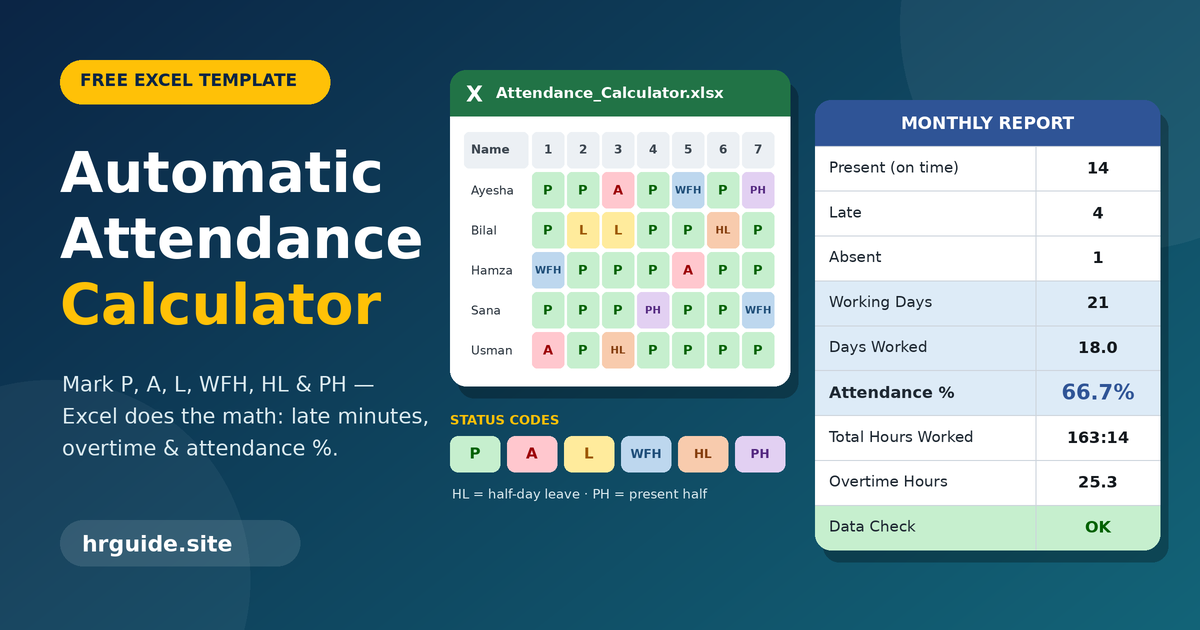
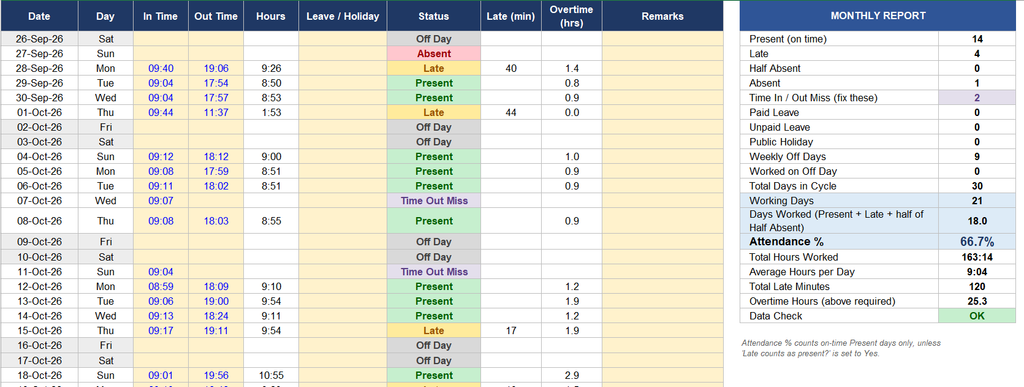
I made this attendance calculator in Excel to solve exactly that. You just type the date, the in-time, and the out-time for all Months Dates. The sheet does the rest: it works out the weekday, the working hours, the status of every day (Present, Late, Absent, Half Absent and Leave, Also WFH more), and a complete monthly report with attendance percentage and average working hours. No macros, no add-ins, and no software to install.
Why this Simple Calculator is Important
I was very afraid when I joined the company, and my company handed over the payroll; all work was manual. Every time, I thought I might have made a mistake or not counted accurately from the register, but after making this calculator, I can now calculate monthly days within minutes. Here are some things why this calculator is important:
- No need for manual record-keeping. The status of every day and the monthly update the moment you enter a time.
- Fair and consistent rules. The same late-time and half-day rules apply to every day, so nobody can say a decision was personal.
- Easy to explain to employees. Each day shows a clear status, so questions like “why was I marked late?” have an immediate answer, including how late someone is.
- Works for any 30-day cycle. The sample sheet runs from the 26th of one month to the 25th of the next, which suits offices that process salary on that cycle. You can just as easily use the 1st to the 30th.
- Free and fully editable. You can change the rules to match your own office policy.
What is inside the sheet
The sheet has eight columns. You only type into the first four. The rest are calculated automatically.
| Column | What it does | Do you type it? |
| Date | The date of every day in your cycle | Yes |
| Day | Shows the weekday name (Monday, Tuesday, and so on) | No, automatic |
| In Time | The time the employee arrived, for example 09:05 | Yes |
| Out Time | The time the employee left, for example 18:00 | Yes |
| Hours | Total hours worked that day (out time minus in time) | No, automatic |
| Off Day | The status of the day (see rules below) | No, automatic |
| Monthly Attendance Report | The list of summary items | No, fixed labels |
| Status | The count or percentage for each summary item | No, automatic |
The rules the calculator uses
The status of every day is decided by a short chain of checks, always in this order:
| Situation | Status shown |
| The day is a weekly off (Friday or Saturday in the sample) | Off Day |
| Both in-time and out-time are empty | Absent |
| In-time is empty but out-time is filled | Time In Miss |
| Out-time is empty but in-time is filled | Time Out Miss |
| In-time is 11:30 or later | Half Absent |
| In-time is after 09:15 | Late |
| In-time is 09:15 or earlier | Present |
So in the sample file, the office starts at 9:00, there is a 15-minute grace period, and anyone arriving after 9:15 is marked Late. Anyone arriving at 11:30 or later is marked Half Absent. These numbers are only the sample settings. You can change them in a minute (see the customization section below).
The monthly report explained
Before this calculator, I gathered data from groups at the end of the month and took some from a manual handwritten register, but now I update my data within minutes.
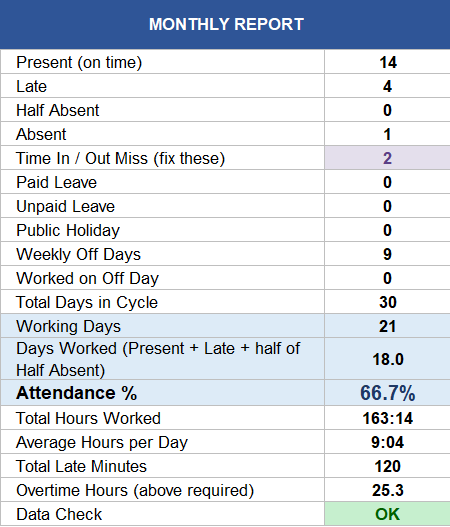
At the top right of the sheet, a small report summaries the whole month:
- Present: days with on-time arrival and both in and out times recorded.
- Absent: working days with no in-time and no out-time.
- Late: days where the employee arrived after the grace time.
- Half Absent: days where the employee arrived at or after the half-day time.
- Off Days: the number of weekly off days in the cycle.
- Working Days: total days in the cycle minus the off days.
- Attendance Percent: Present days divided by working days, multiplied by 100.
- Total Days: the number of dates entered in the sheet.
- Avg Working Hours: the average of the hour’s column, for the days that have both times.
One thing to know: in the sample setup, the attendance percentage counts only on-time Present days. Late days and days with a missing time are not counted as present in that percentage. This keeps the percentage strict. If your policy treats Late as present, you can adjust the formula (see the FAQ).
A worked example
The sample data in the file covers 30 days, from 26 September 2026 to 25 October 2026. Here is what the sheet calculated:
| Item | Result |
| Total days in the Payroll Cycle | 30 |
| Weekly off days (Fridays and Saturdays) or any as per rules. | 9 |
| Working days | 21 |
| Present | 14 |
| Late | 4 |
| Absent | 1 |
| Time Out Miss | 2 |
| Half Absent | 0 |
| Attendance percent | 66.7% |
| Average working hours | about 9 hours 4 minutes |
Quick check: 14 presents + 4 late + 1 absent + 2 time-out-miss = 21 working days, which matches the working-day total. The attendance percentage is 14 divided by 21, which is 66.7%.
The example also shows why the report is useful. The employee averaged over nine hours on the days they were recorded, yet the percentage is only 66.7%. The reason is clear when you look at the status column: four late arrivals and two days where the out-time was never entered. That is the kind of detail that is easy to miss when counting by hand. any one who use my calculator can easily make his monthly attendance calculation within short time
Step-by-step: how to use the calculator
Step 1: Download and open the file. Save the Excel file on your computer and open it with Microsoft Excel.
Step 2: Enter your dates. In the Date column, type the dates of your cycle, one per row. For example, start at 26-09-2026 and continue for 30 days. The weekday name appears automatically.
Step 3: Type the in-time and out-time. Enter times in 24-hour format, such as 09:05 and 18:30. Leave both cells empty if the employee did not come. Leave one empty if a punch is missing.
Step 4: Check the status column. Each row now shows its status. Weekly-off days show as Off Day even if you leave them empty.
Step 5: Read the monthly report. The summary on the right updates as you type. At the end of the cycle, it is ready to use for salary and review.
Step 6: Save a copy for the next month. Keep each month as a separate file, for example Attendance-November-2026.xlsx. For the next cycle, clear the dates and times and start again.
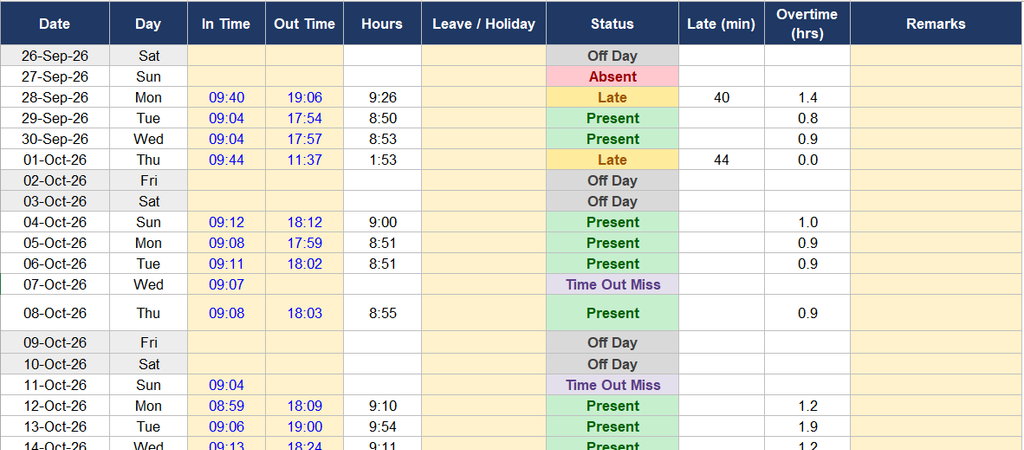
You can see this above my table how any HR person easily can get accurate details by just entering the in and out time and all report available within minutes
How to customise the rules
The rules live in one formula in the status column. You can edit it to match your office. These are the three settings people change most often.
1. Change the weekly off days. The sample uses Friday and Saturday. If your offices closes on Saturday and Sunday, find this part of the formula:
OR(B2=”Friday”,B2=”Saturday”)
and change it to:
OR(B2=”Saturday”,B2=”Sunday”)
2. Change the late time. Find TIME(9,15,0) and change it to your own time. For a 9:30 limit, use TIME(9,30,0).
3. Change the half-day time. Find TIME(11,30,0) and replace it with your own limit, for example TIME(12,0,0).
After editing the first status cell, copy the formula down to all the other rows so every day follows the same rule.
Tips for accurate attendance records
- Enter times daily. It takes a minute and avoids end-of-month guessing.
- Use one format. Always type times as 09:05 style, with a colon, in 24-hour time.
- Fix missing punches quickly. A Time In Miss or Time Out Miss should be checked with the employee the same day.
- Write your late and half-day policy down. Tell your team the exact times, so the Late and Half Absent statuses are never a surprise.
- Show employees their report. Sharing the monthly summary before salary processing builds trust and catches mistakes early.
- Keep backups. Store every month’s file in a safe folder or cloud storage.
Who can use this calculator?
- Small offices and start-ups units.
- Shops, showrooms and Stores.
- Schools, Coaching and training centres.
- Clinics and small hospitals.
- Workshops and small factories
- HR officers who need a quick check of one employee’s month.
The sheet tracks one person per file. If you manage a team, keep one file per employee, or use it to verify a single employee’s record when there is a dispute.
Limits you should know about
I want to be honest about what this tool is and is not.
- It is a record calculator, not a biometric system. It trusts the times you enter.
- It handles one employee per sheet and about 30 days per cycle. For a 31-day cycle, add one more row and copy the formulas down.
- It does not track leave types, overtime pay or public holidays. You can mark a public holiday by treating it like an off day in your own records.
- The attendance percentage in the sample counts only on-time Present days. Change it if your policy differs.
Frequently asked questions
Is this attendance calculator really free? Yes. You can download it, use it and edit it for your own business at no cost.
Which software do I need? Microsoft Excel works best. The sheet uses ordinary formulas, so it should also open in LibreOffice Calc and Google Sheets. If you use Google Sheets, check that the status column calculates correctly after you import the file.
What if an employee works on a weekly-off day? The sheet shows that day as Off Day, even if times are entered. Hours are still calculated, so you can see the extra time worked. If you want such days treated as normal working days, remove that day from the off-day rule for that row or note it separately.
How do I count Late as Present in the percentage? In the Attendance Percent cell, add the Late count to the Present count before dividing. For example, divide (Present + Late) by Working Days.
Why does the sheet show Time Out Miss? It means an in-time was entered but the out-time was not. The day is shown clearly instead of being counted wrongly, so you can correct it.
Can I use it for more than 30 days? Yes. Add another row at the bottom and copy the formulas from the row above. Then extend the report formulas to include the new row.
Download the free attendance calculator
Download Attendance Calculator (Excel)
Download the file, enter your dates and times, and see your monthly attendance report in seconds. If it saves you time, share it with another business owner or HR colleague who still counts attendance by hand.
Conclusion
Good attendance records are not about watching people. They are about fairness, clear information and a calm month-end. With just four columns to fill in and a complete report that builds itself, this Excel calculator gives you a clear picture of any employee’s month in a few minutes.
Note. This Calculator is Made for the help of HR persons please share it free with others.
Disclaimer: This calculator is a record-keeping tool. Attendance, leave and salary rules differ between companies and countries. Please follow your own company policy and the labour laws that apply to you.

About Muhammad Faisal
Muhammad Faisal is an HR professional with an MBA in Human Resources and six years of experience across diverse HR domains. Through HRGuide.site, he turns real-world HR knowledge into practical insights, career advice, interview tips, and valuable resources to help professionals grow and organizations thrive.